Web-based password change
This section describes the steps for using the web-based password changer only. For help using the Participant File Server Password Changer, see Participant file server password change.
Prerequisites
To use the web-based password changer:
- You need a PC with access to see Data network connection (MarketNet).
- Ensure you have access to the Participant File Server > 146.178.211.25 through your firewall.
- Remove any proxy servers and direct dial-out to your internet service provider (ISP).
- Stop all automatic FTP processes connecting to the Participant File Server for the Participant ID password.
Instructions
To change your participant ID password using the web-based password changer:
- On a MarketNet-connected machine, open your web browser.
- In the Address field enter 146.178.211.25:
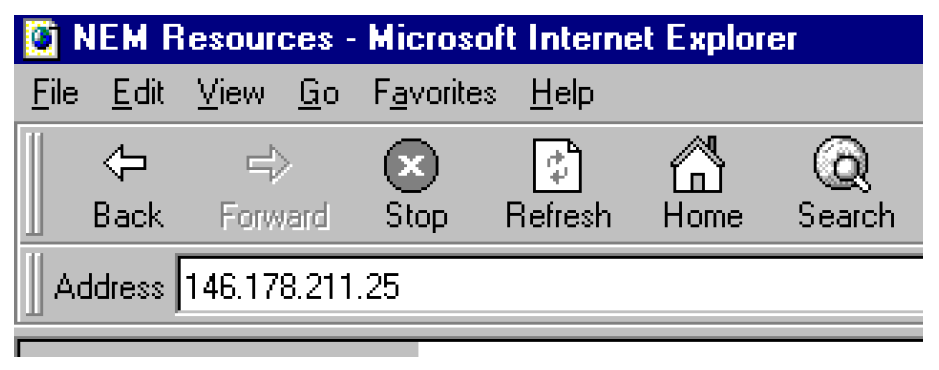
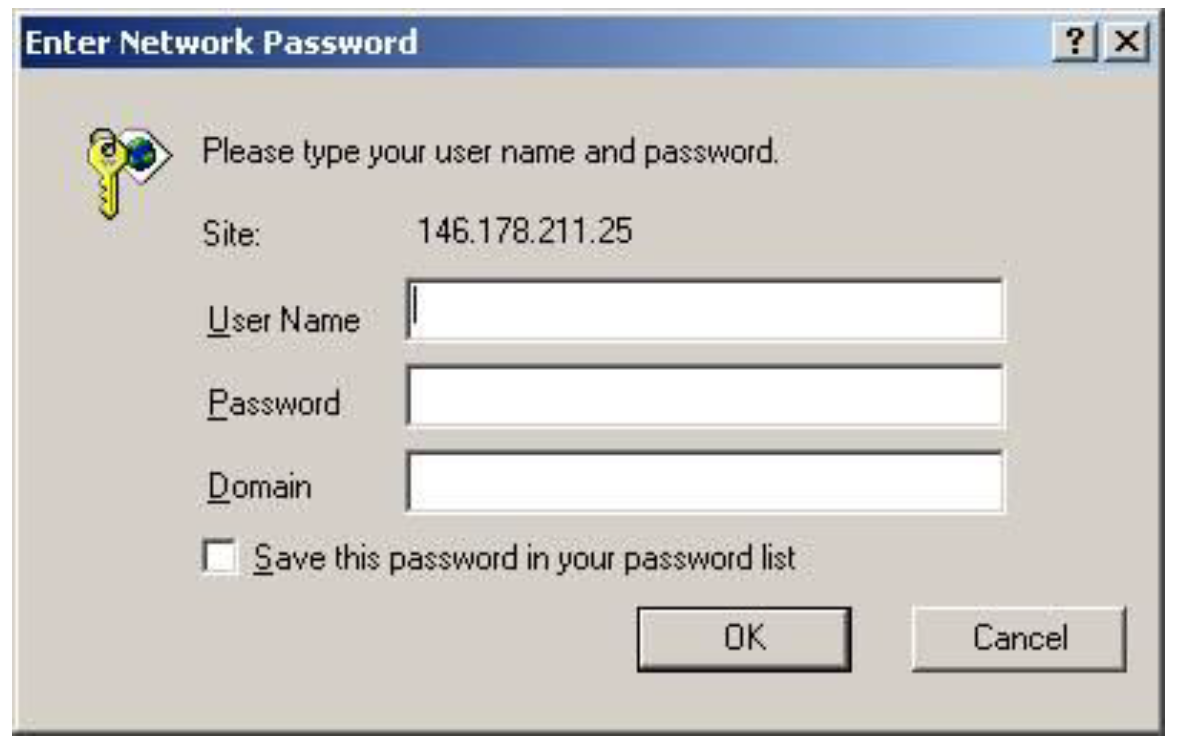
- On your keyboard, press Enter. When the web browser connects, the Enter Network Password dialog box appears.
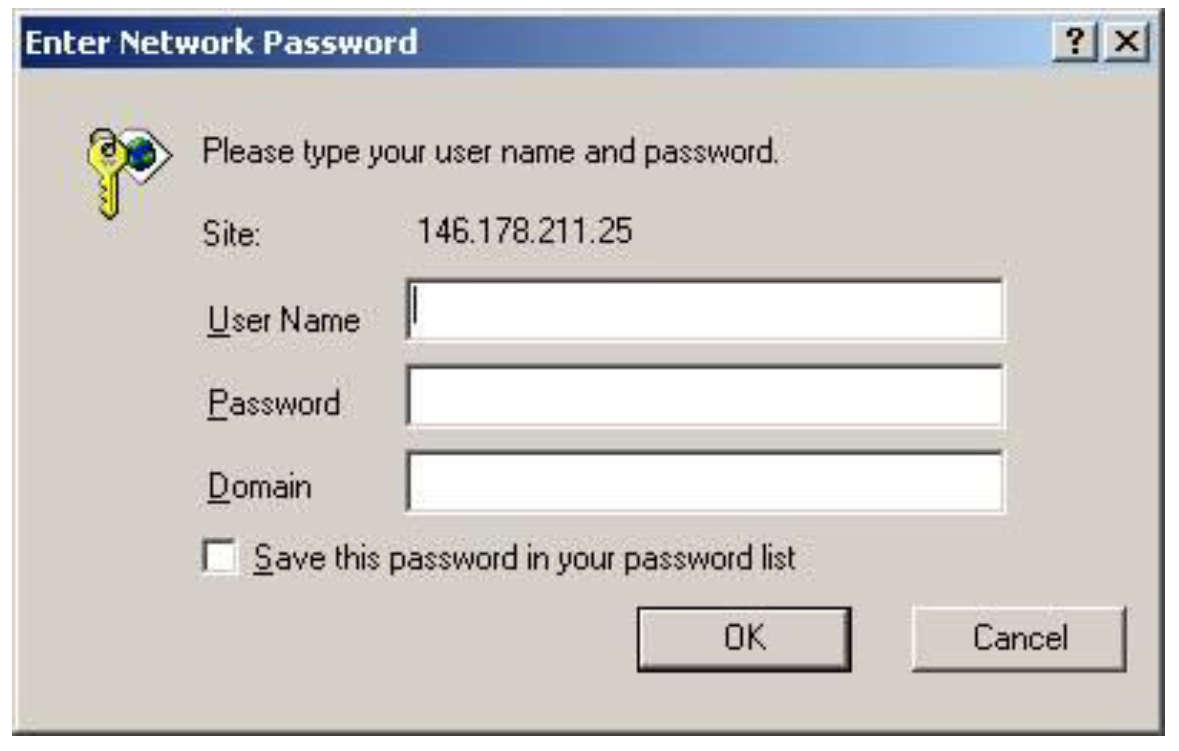
- Enter your FTP access User Name and press the Tab key.
- Enter your Password and press the Tab key.
- Enter nemnet for the Domain and then click OK.
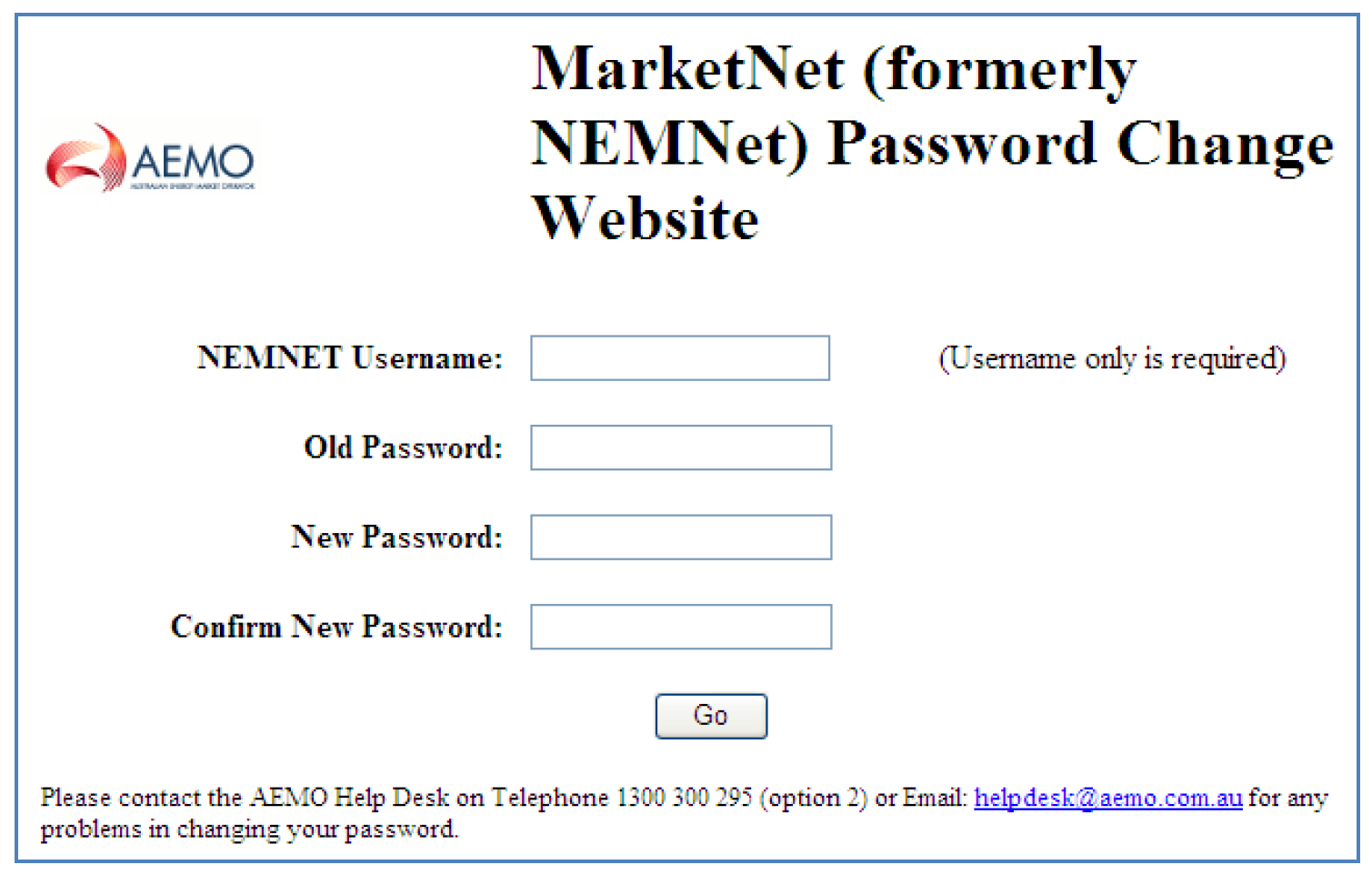
- The "MarketNet Password Change Website" displays a form, you must enter all the information in this form. It should look similar to this:
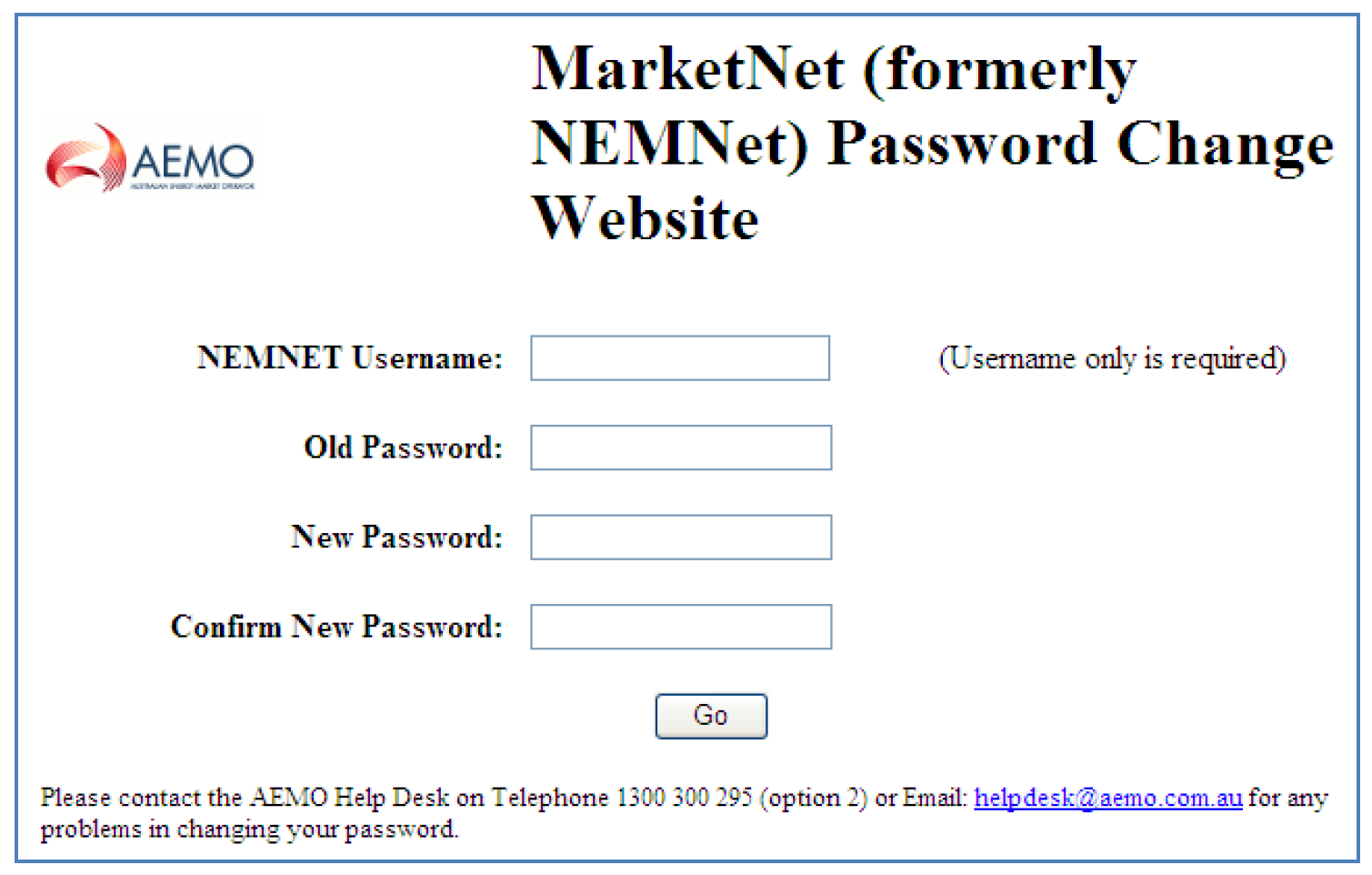
- In the NEMNET Username box, enter your user name and press the TAB key Note: Do NOT enter "nemnet" before the username. This is your FTP access user name. It is the same user name you entered in the Enter Network Password dialog box
- In the Old Password box, type your old password and press the TAB key.
- In the New Password box, type the new password and press the TAB key.
- In the Confirm New Password box, type in the new password again.
- Click Go to submit the new password. Important: Wait three minutes for the change to take effect on the AEMO server before proceeding.
- Log off MarketNet and then log back in using the new password.
- To restart other processes (if any), on all computers connecting to the shared folders on the Participant File Server, modify your automatic FTP processes to use the new password and then restart the processes.
You must log off and log on to set the new password correctly.